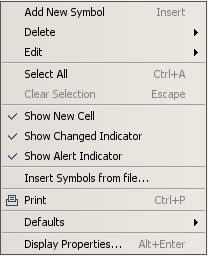
Right Click on the Forex window to get the Forex menu
Either the selected symbol or all symbols can be deleted. Symbols are selected by clicking on the square that they are in.

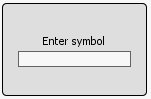
Selected Symbol(s) can be cut, copied, pasted or edited. Selecting Edit Selected Symbol brings up the Enter Symbol dialog in order to change the Symbol for that square.

Select All is used to select all of the Symbols on the windows in order to perform an editing or other task on them.
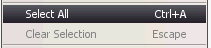
Clear Selection is used to clear the selection in case the user decides not to perform the editing task.

Show New Cell causes a blank Enter Forex Symbol square to always be present on the Forex Grid.
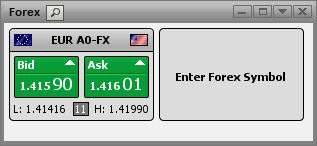
Users who already have all the Symbols they want in their Forex Window can disable this setting if desired. The Add New Symbol Right Click menu item is always available.

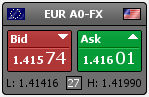
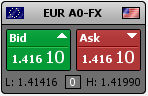
Show Changed Indicator will cause the header of a Symbol square to Blink when there is a data change.
Alerts can be set by Right Clicking on the titlebar of a Forex Square
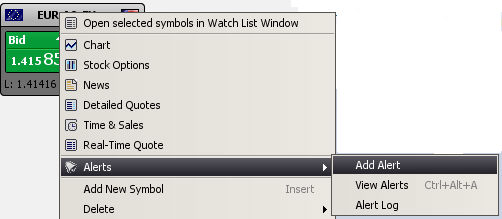
See the Alerts section for more information on Alerts.
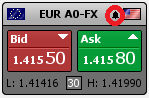
Select Show Alert Indicator to display Forex Alerts

The Alert icon appear to the right of the Symbol Name in the Titlebar of the Forex Square.

Forex symbols can be loaded from a text file.
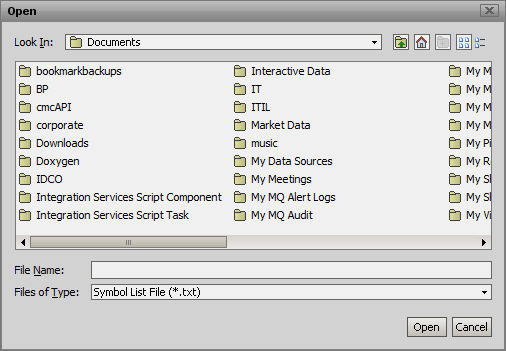
The Symbols should be comma separated.
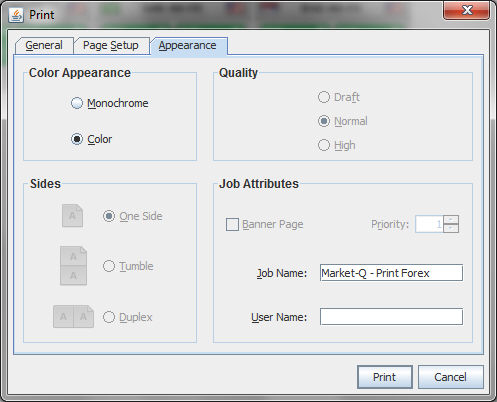
The Forex grid can be printed out.
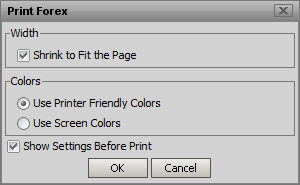
By Default, print jobs will automatically Shrink to Fit the Page, Use Printer Friendly Colors and Show Settings Before Print. Printer Friendly Colors will strip out the dark backgrounds to improve readability and save ink.
Use Screen Colors can be selected if Full Color prints are desired.
The Print Settings Screen also has an option on the Appearance Tab for monochrome printing.