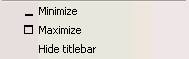
To minimize a window, right click in the title bar.
Click on the Minimize option. The window is hidden from view.
There are 3 ways to restore a minimized window:
When a window is minimized, depending on its position in relation to other windows, it’s window border [ the line with the 5 dots in its center ] is moved in a way that hides the window. The window border is still visible however, and the window can be restored by clicking and dragging its window border.
To reinstate the window, load a saved workspace.
Use Restore as described below (this option is only available when a window has been maximized).
To maximize a window, right click in the title bar. Click on the Maximize option.
The window is displayed in a format that covers the screen. To put the window back in it's place in the workspace, double click in the white space in the title bar.

Click Restore. This will also reinstate any other Connect windows which were minimized during the session.