Set Alert Notification Properties
Alerts can be set on the Watch List, Option Chain, Hot Lists, Detailed Quotes, and Market Depth windows. There are three types of alert notifications that you can receive:
-
Window alerts
-
Sound alerts
-
Desktop tray alerts
You can set one, two or all three of the alert notification types.
To access alert notification properties click on the Utilities option in the menu bar, then select the Preferences window and click on the Alert option.
-
-
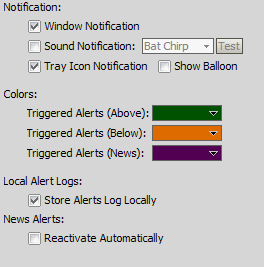
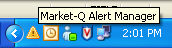
Select the type of alerts you want to receive (Window Notification, Sound Notification, Tray Icon Notification). For Sound Notification, you can select a sound and then test it. For Tray Notification, a yellow triangle displays in the desktop tray. The tray notification applet is called the FutureSource Alert Manager
-
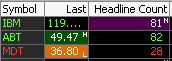
Alerts can be assigned different colors depending on whether they have been triggered by a low or high price threshold having been reached or due to a News event. Alerts can also automatically reactivate, which is particularly useful for News Alerts.
-
Click OK when done. The alert is set.
Set Alerts Display Window Properties
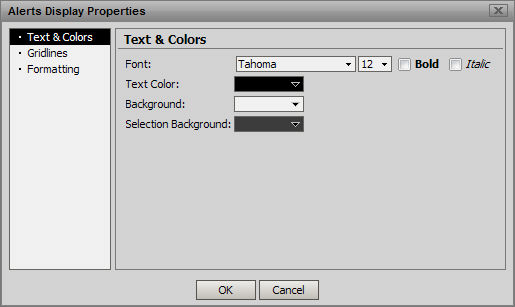
Right click in the viewing pane or header of the Alerts Display window and select Display Properties. The Alerts Display Properties window appears.
Text and Colors
This sections allows the Font Type, Size and Style to be specified along with the Text and Background colors and the color that will be given to an item that has been selected with the mouse.
Gridlines
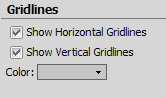
The gridline options give the choice of whether to show the Horizontal or Vertical Gridlines and what color they will be if they are displayed.
Formatting
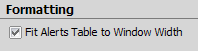
Unchecking Fit Alerts Table to Window Width causes the table to become fixed width and not change dynamically when the alerts window is resized. However, the columns can still be resized if desired.