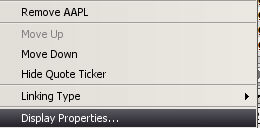
You can add, change, delete symbols that display on the Quote Ticker, by using the Quote Ticker Display Properties pop-up window.
To access Quote Ticker Settings. Right click on the Quote Ticker bar, then click the Settings option.
The Quote Ticker Display Properties pop-up window displays.
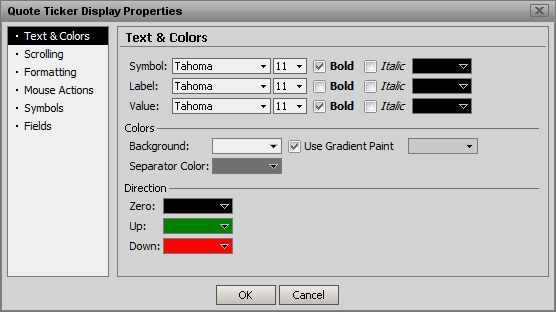
Text and Color Attributes can be set here. The separator is the dot between the different symbol data groups and the gradient allows graduated color to be added to the Ticker

This example shows separators, an Aqua colored gradient and the default direction indicators of Black for no change, Green for up and Red for down.
To adjust the scroll speed, go to the Scrolling section of the window and move the pointer in the slider either to the left or to the right.

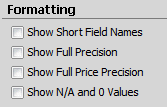
Allow Click or Double Click to automatically send the highlighted symbol to any other FutureSource Window type

Many Symbols can be added to the Tickers. Either type the symbol directly into the Symbols field or use the magnifying glass to look up a symbol, then type it into the field. Select the Add button to the right of the field and the Symbol will be added to the list in the text display box.
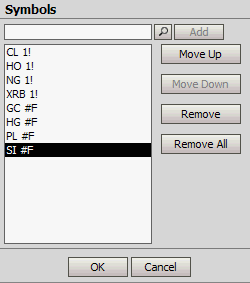
Once in the List symbols can be moved up or down in the list order or removed. The entire list can be cleared using the Remove All button.
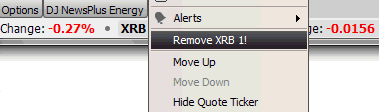
To delete a symbol directly from the Ticker right click on the symbol and select the Remove Option
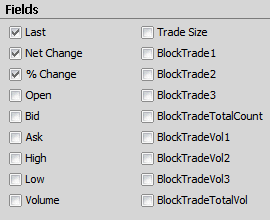
To select the fields to display on the quote ticker, place a check mark next to the fields to display.
To delete a field, click on the field. The check mark disappears and the field no longer displays on the ticker
When done, click OK.