The Time & Sales Active Plug-in toolbar gives you access to common features and tasks using a click of the mouse. Tools are graphical representations of the most frequently used commands and features in Workstation.
|
Command |
Description |
|
Symbol Field |
Use this field to enter the symbol you wish to display. |
|
... |
Clicking this button actives the Symbol Search dialog box. |
|
Go To Last Time |
Clicking this tool will reset the window to display the last time/tick found on in the window. |
|
Date |
Trading Day you wish to view |
|
Time |
Time Range from the Trading Day you wish to view |
The use of the Date and Time field can provide many different results, given you very precise searches
|
Input |
Result |
|
Date Only |
Data from that specific Trading Day Only |
|
Date & Start/End Time |
Data from that specific Trading Day for the given Time Span Only |
|
Date & Start Time Only |
Data from that Specific Trading Day, from the Start Time to the end of the Trading Day |
|
Date & End Time Only |
Data from that Specific Trading Day, from the End Time to the beginning of the Trading Day |
|
Start & End Time Only |
Data from Current Trading Day, From the Start Time to the End Time |
|
Start Time Only |
Data from Current Trading Day, from the Start Time updating Real Time until the end of the Trading Day |
|
End Time Only |
Data from Current Trading Day, from the End Time to the beginning of the Trading Day. |
|
No Date or Time |
Data from Current Trading Day, Always Updating Real Time, ability to view continued history by scrolling backwards. |
Note: When using End Time and Current Trading day, Time & Sales will update Real Time until End Time is reached.
Tip: Remember besides using the Mouse to Grab and Scroll backwards to view History, you can use the Page Up/Down buttons on the Keyboard for easier scrolling.
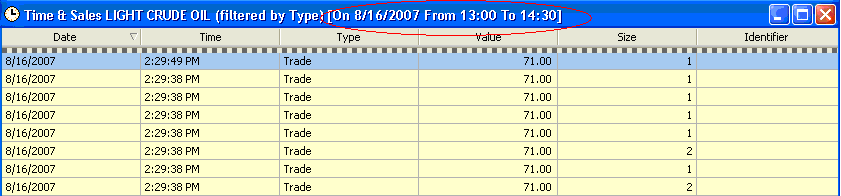
When you have a Time & Sales window that you have applied Date/Time restrictions to, it will always be noted in the Windows Title Bar.